Find everything you need to update firmware, including download links, step-by-step instructions, and help figuring out which firmware version applies to your system.
📌 The firmware you need depends on which Catchbox Plus system you own.
We've got everything explained below.
What You'll Need
Quick Downloads
Which Firmware Version Should You Use
How to Identify Your System
Firmware Update Instructions
What You'll Need
- a Windows computer
- Catchbox Firmware Updater software
- firmware files for your Hub receiver and mics
- your Plus system (Hub + mics)
- a USB-C cable to connect each device to your computer
⚠️ Remember: Each device (Hub and mics) needs to be updated one at a time.
Quick Downloads
⬇️ FW Update Software (for Windows Only)
⬇️ FW 2.2 files
Which Firmware Version Should You Use
The firmware version you need depends on which Catchbox Plus system model you have.
The easiest way to figure that out is by checking when your system was purchased. If you're not sure, take a look at the HAS numbers on your Plus system components.
Use the reference table below to quickly find which firmware version fits your receiver and mics.
| Purchase Date | Firmware Required |
| Aug 10, 2022 - Aug 25, 2024 | 1.12 |
| Aug 26, 2024 - June 2, 2025 | 2.2 |
| From December 9, 2025 onward | 2.2 (already updated, no action required) |
How to Identify Your System
Check the HAS number label on the Hub receiver and mics.
It looks like this: HAS-xxxxx.
Here's how to match yours:
| Firmware 1.12 | |
| Hub | HAS-00162 |
| Clip mic | HAS-00160 |
| Cube mic | HAS-00158 |
| Firmware 2.2 | |
| Hub 2-channel | HAS-00202 |
| Hub 4-channel | HAS-00203 |
| Clip mic | HAS-00205 |
| Cube mic | HAS-00204 |
| Stick mic | HAS-00206 |
| Firmware 2.2 (already installed on components purchased after December 9, 2025) |
|
| Hub 2-channel | HAS-00244 |
| Hub 4-channel | HAS-00245 |
| Clip mic | HAS-00205 |
| Cube mic | HAS-00204 |
| Stick mic | HAS-00206 |
Here’s an additional resource with product HAS numbers and detailed images to help you easily locate the labels on each mic type and receiver.
Firmware Update Instructions
Step 1: Install the Catchbox Programmer Software on your computer
1.1. Download and run the Catchbox Setup.exe installer file.
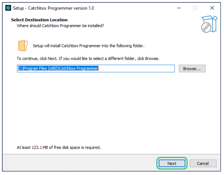
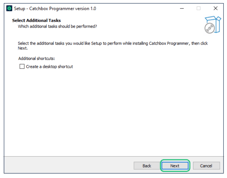
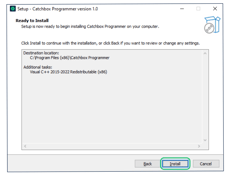
1.2. Click "Next" > Click "Next" > Click "Install"

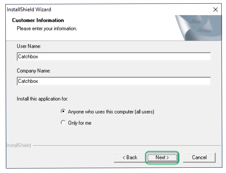
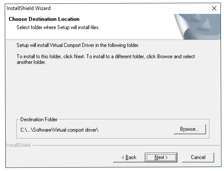
1.3. Click "Next" > Enter your Company Name, Click "Next" > Click "Next"
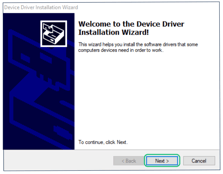
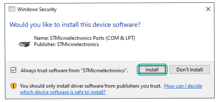
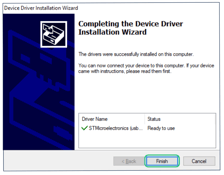
1.4. Click "Next" > Click "Install" > Click "Finish"
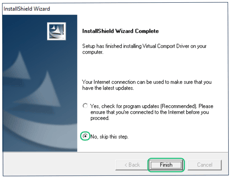
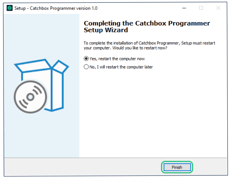
1.5. Check "No, skip this step" and Click "Finish" > Click "Finish".
Your computer will restart.
The Catchbox Programmer app is now available via the Start Menu.
Step 2: Update the Firmware
2.1. Launch the Catchbox Programmer that you just downloaded.
2.2. Unzip the downloaded firmware package.
2.3. Click "Select File" and navigate to the correct firmware file.
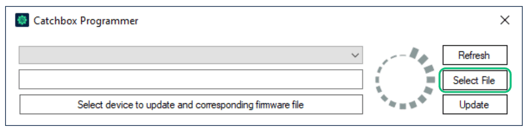
2.4. Connect your Catchbox device via USB-C.
2.5. Wait for the device to appear in the top-left device list.
2.6. Click "Update". The process may take up to 3 minutes. When done, the software will indicate that the “Device firmware is up to date”.
2.7. To update the next device simply unplug the previously updated device and repeat all the steps.
⚠️ Make sure to use the right firmware file for each product. If there's a mismatch, you'll get an error message.
Need help? Contact support for assistance