What will you get?
What will you need?
Step-by-step instructions
Tips for better audio
What will you get?
- Professional audio without separate mixers and processors
- Distortion free audio by matching signal levels
- A system that easily adapts to video conferencing and multi-source events
What will you need?
-
Catchbox Plus system (Hub receiver and microphones)
-
Artome smart furniture unit
-
Catchbox XLR-to-3pin adapter (purchased separately)
-
Artome remote or Artome Connect app
Step-by-step instructions
1. Configure Artome input to line level
To avoid distortion, the Artome unit must be set to Line Level to match the Catchbox Hub's output.
Via the Artome Remote Control
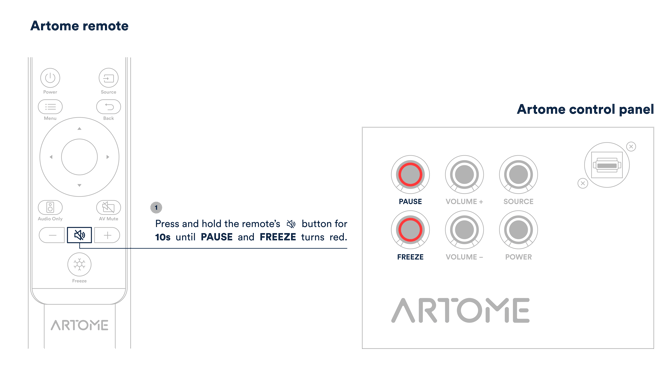
1.1. Use the remote to navigate to the audio settings and select Line Level mode for the microphone inputs. Long-press the MUTE button on the remote for 10 seconds. Two left-most LEDs on the button panel illuminate and a chime is heard.
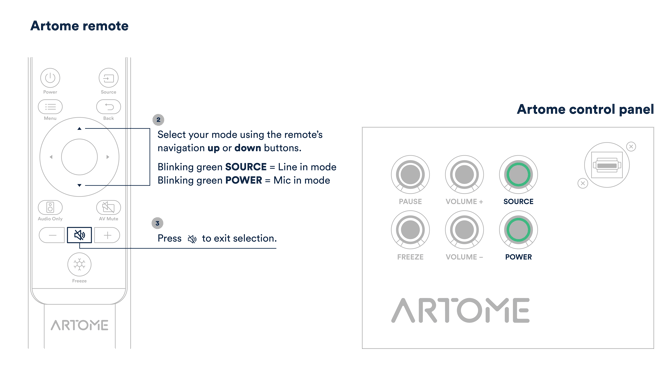
1.2. Use the up/down buttons on the remote to select between line and mic level input mode.
- Mic mode is indicated by the blinking POWER button.
- Line mode is indicated by the blinking SOURCE button.
1.3. When line mode is selected, use the left/right buttons to adjust the input gain.
1.4. Confirm the selection with the remote's MUTE button.
Via the Artome Connect app
Use the Artome Connect app to access the settings and switch the input mode.
Go to SETTINGS → AUDIO and set the BALANCED LINE-IN MODE → LINE-IN.
2. Configure Catchbox Hub output
2.1. Connect the Hub’s 3-PIN Mixout (L or R) to an Artome XLR input.
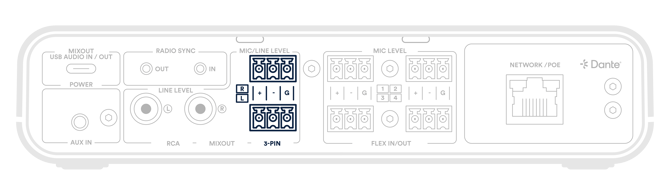

2.2. Use the Hub’s front-panel user interface and navigate to OUT → MIXOUT 3-PIN and set to LINE LEVEL
2.3. Route the mics in the Mix Configuration menu by enabling the needed MIC channels.
💡Tips for better audio
→ On the Catchbox Hub
In-Room Voice Lift: Use the Voice Lift Level feature on the Hub to amplify in-room microphone audio. This replaces complex manual gain adjustments and keeps sound consistent for the whole room.
Optimized Video Calls: When using any of the video conferencing platforms (Teams, Zoom, Meet, etc.), connect your PC to the H ub, set it to Speakerphone mode and use the Hub as the primary audio device. Hub’s built-in DSP will ensure the best hybrid meeting audio quality.
→ On the Artome unit
Speaker EQ: Adjust the levels of Bass (controls low frequencies) and Treble (control higher frequencies). This allows you to adjust the sound to the room's acoustics, making speech clearer or media playback richer.
Volume Limits: Set a Startup Volume so the system always begins at a safe level, and a Max Volume to prevent the audio from being turned up too high.
External PA Mode: If you are connecting to a larger external sound system, use the Artome Speaker Mute setting. This disables the internal Artome speakers while keeping the signal active for the external system.